> ## Documentation Index
> Fetch the complete documentation index at: https://docs.sightlinebehavior.com/llms.txt
> Use this file to discover all available pages before exploring further.
# Record away from your computer
> Prepare a partial-interval observation, record on iPhone, and review it on your computer.
Prepare an observation in Sightline, send it to your iPhone, and record away from your computer. Begin and end the observation on iPhone, then return to your computer to review the saved record.
This example uses one behavior with **Partial Interval**, **30-second intervals**, **No limit**, and **Pause to score each interval** turned **off**. The intervals advance automatically while you observe.
## Before you leave
Have [your iPhone paired with Sightline](/companion/iphone-setup) and connected to your computer for preparation. Companion requires Pro or an active Pro trial.
Away recording has no manual **Pause** control. The observation clock continues if you stop observing. Note any intervals you miss so you can clear their automatic scores in Results after the observation returns. See [Supported features and limitations](/companion/features-and-limitations) before using another method or prompt setting.
## Prepare and send the observation
1. On your computer, open the student and select **Start Observation**. For practice, use a fictional student outside demo mode; [Setting Up an Observation](/observation-setup) explains the entry point.
2. Select the method tile and choose **Partial Interval**.
3. Enter **Hand raised** as the **Behavior name**. For this example, use the definition “The student holds one hand above shoulder height.” Keep just this one behavior.
4. Under **Length**, choose **No limit**. Set **Interval** to **30** seconds and turn **Pause to score each interval** **off**. Leave **Peer comparison** and **Track activities** off for this example.
5. Select **Send to phone** in the setup footer. In the label field, enter **Practice interval**, then select **Send**. This label appears on the phone; choose labels with that in mind when preparing real observations.
6. On iPhone, find the **Practice interval** card. Tap it and check the method, **Hand raised**, and the 30-second countdown. Opening the card does not start the timer. On your computer, the pending observation appears in the student's **Sessions** with **On phone**.
Check the prepared observation on your phone before leaving your computer. If sending fails, read the message and use **Retry** when offered.
## Begin on iPhone
At the observation location, tap **Begin** on iPhone when you are ready to observe. Check that the countdown is running.
## Score on iPhone
Observe throughout each 30-second interval.
1. If the hand meets the definition at any point during the interval, tap **Hand raised** once. The card fills and shows a checkmark.
2. Leave it marked even if the hand lowers or rises again during that interval. Partial interval records occurrence within the interval; repeated occurrences do not add more scores.
3. If the behavior does not occur, leave the card unmarked. When the interval closes, Sightline records nonoccurrence for an untouched interval.
4. When the countdown begins the next interval, the card resets. Continue observing and score that interval in the same way. There is no **Continue** step with this setup.
To correct an accidental tap during the current interval, tap **Hand raised** again to remove the mark. Once the interval has passed, make corrections in Results after returning the observation to your computer.
If you cannot observe an interval, keep track of its number so you can clear its automatic score after returning to the computer.
## Add a voice note (optional)
You can complete this example without voice notes. To add a spoken note, follow [Voice notes](/companion/voice-notes) for the iPhone instructions.
The computer transcribes voice notes after the observation returns. Check the resulting text separately from the interval scores.
## Finish on iPhone
1. When you have collected enough intervals, return to the observation on iPhone. Let the interval you are observing finish if you want it included. With **No limit**, ending partway through an interval leaves that unfinished interval out of the saved record.
2. Select **End**, then confirm **End observation**.
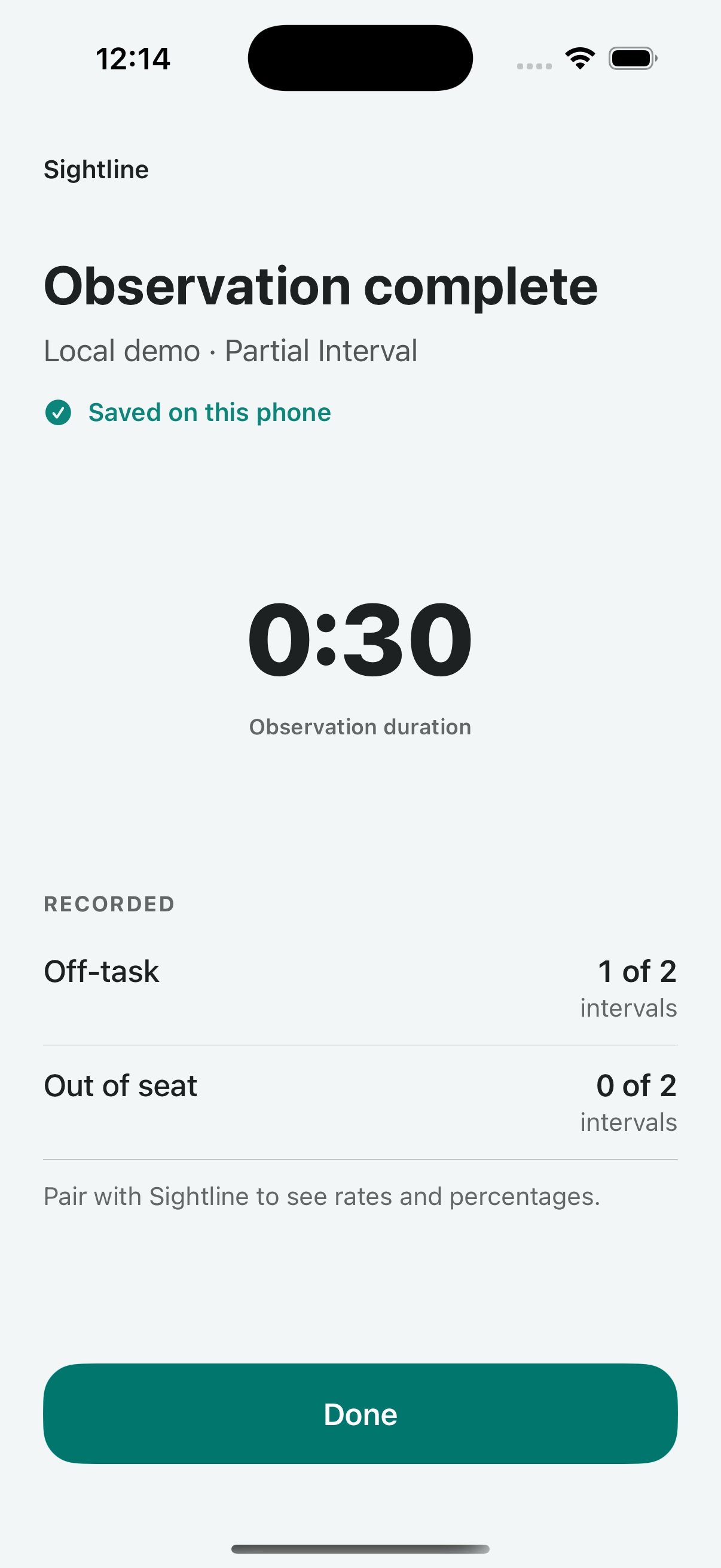
3. Check **Observation complete** and **Saved on this phone**, then select **Done**.
**Ready to send to your computer** means the completed observation is waiting to transfer. **Saved on this phone** confirms only the phone copy. Follow the return steps below to check that it reaches the computer.
 ## Return and review the observation
1. Bring your iPhone back to the paired computer. Open Sightline on the computer and Companion on iPhone, with Bluetooth enabled. The completed observation sends automatically when they reconnect.
2. On the computer, open the student and look in **Sessions**. If an **Observation returned** notification appears, its **View** action takes you to the student.
3. Open the returned observation. Confirm the student, date, **Partial Interval** method, and 30-second interval length. Review the scores under **Interval Record** and the totals under **Interval Summary**.
In this example, an interval scored **Occurred** means the hand was raised at some point during that interval. If the result is 40%, the hand was raised in 40% of scored intervals. This does not mean it was raised for 40% of the observation time.
If you missed an interval, select its cell in Results and choose **Clear score** so the automatic ✕ does not count in the results. You can also choose the checkmark (**Occurred**) or cross (**Did not occur**) to correct a score you observed. Results saves these changes automatically; follow any save warning before leaving.
See [Interval Recording](/interval-recording) for other interval methods and [Viewing Results](/results) for reviewing, writing about, or exporting the observation.
## If the observation has not returned
Keep the observation on your phone. **Ready to send to your computer** means it is still awaiting return; an **On phone** row on the computer is not a completed observation.
Check that both apps are open and the paired devices have reconnected. If the desktop reports that the observation needs attention, follow [Companion troubleshooting](/companion/troubleshooting#observation-not-returned). Confirm that you can open the saved desktop observation before deleting phone data or resetting pairing.
This documentation is built and hosted on [Mintlify](https://mintlify.com), a developer documentation platform.
## Return and review the observation
1. Bring your iPhone back to the paired computer. Open Sightline on the computer and Companion on iPhone, with Bluetooth enabled. The completed observation sends automatically when they reconnect.
2. On the computer, open the student and look in **Sessions**. If an **Observation returned** notification appears, its **View** action takes you to the student.
3. Open the returned observation. Confirm the student, date, **Partial Interval** method, and 30-second interval length. Review the scores under **Interval Record** and the totals under **Interval Summary**.
In this example, an interval scored **Occurred** means the hand was raised at some point during that interval. If the result is 40%, the hand was raised in 40% of scored intervals. This does not mean it was raised for 40% of the observation time.
If you missed an interval, select its cell in Results and choose **Clear score** so the automatic ✕ does not count in the results. You can also choose the checkmark (**Occurred**) or cross (**Did not occur**) to correct a score you observed. Results saves these changes automatically; follow any save warning before leaving.
See [Interval Recording](/interval-recording) for other interval methods and [Viewing Results](/results) for reviewing, writing about, or exporting the observation.
## If the observation has not returned
Keep the observation on your phone. **Ready to send to your computer** means it is still awaiting return; an **On phone** row on the computer is not a completed observation.
Check that both apps are open and the paired devices have reconnected. If the desktop reports that the observation needs attention, follow [Companion troubleshooting](/companion/troubleshooting#observation-not-returned). Confirm that you can open the saved desktop observation before deleting phone data or resetting pairing.
This documentation is built and hosted on [Mintlify](https://mintlify.com), a developer documentation platform.