> ## Documentation Index
> Fetch the complete documentation index at: https://docs.sightlinebehavior.com/llms.txt
> Use this file to discover all available pages before exploring further.
# Change your settings
> Adjust appearance, add observer details, and choose defaults for new observations.
Use Settings to adjust Sightline’s appearance, add your observer details, and choose how new observations are set up.
Select **Settings** in the sidebar, then choose a section on the left. Preferences save as you change them; there is no separate Save button. Set your recording preferences before opening the next observation, as changes do not update a recording already open.
## Adjust the appearance
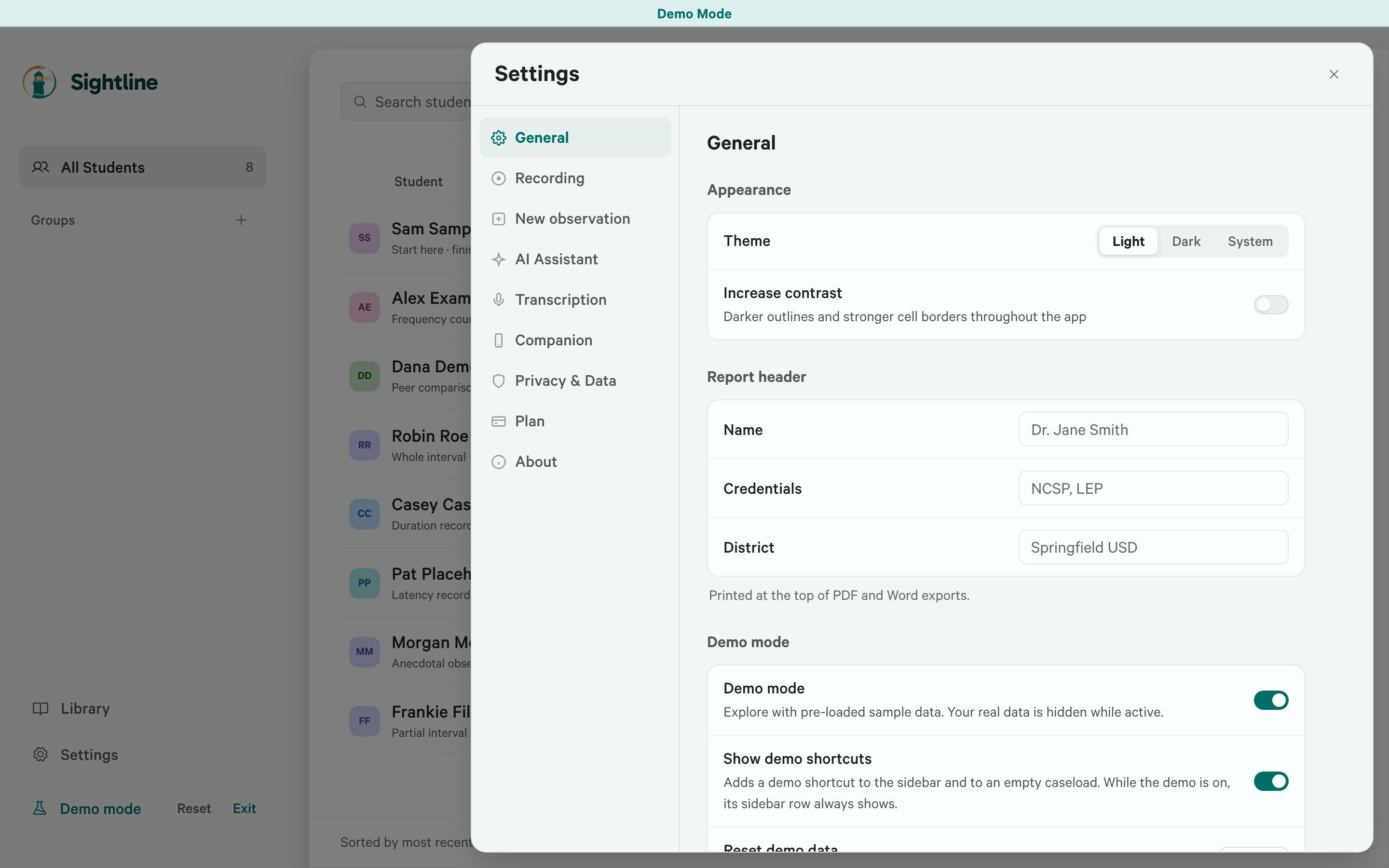
In **General**, choose **Light**, **Dark**, or **System** under **Theme**. System follows your computer’s light or dark appearance. Turn on **Increase contrast** if you want stronger outlines and cell borders.
General also contains **Demo mode**, which lets you explore Sightline with sample students and observations. Your real data is hidden while demo mode is on. Turn it off to return to your own records. **Reset demo data** restores the original sample students and sessions after you have experimented with them.
 ## Add your report header
In **General**, under **Report header**, enter your **Name**, **Credentials**, and **District**. Sightline uses your name and credentials in document exports, including the signature line on write-ups. Review these details before exporting a document for the first time.
## Choose recording cues and behavior
Open **Recording** to adjust the cues you use during an observation.
* **Sound** sets the interval cue to **Beep** or **Chime**. **Off** silences every recording sound, including interval cues, the end-of-session beep, and the start, stop, and trial sounds in Duration and Latency. **Volume** appears when Sound is not Off.
* **Screen pulse** pulses the screen edge when an interval changes. This can help you notice transitions without sound.
* **Count interval time up** changes the interval timer from counting down to counting up within the current interval.
If an interval cue is silent unexpectedly, check **Sound** and **Volume** here, as well as **Audio signal** in the setup of an interval observation.
**Pause when Sightline loses focus** pauses recording when you switch to another window. Select **Resume** in the recorder to continue. An active Latency trial keeps running even with this preference on; complete or cancel it before pausing.
You can also turn on **Keep screen awake** to request that the display stay on during recording. This depends on your computer’s support for the feature; check its sleep settings if the display still turns off.
## Set defaults for new observations
Turn off **Demo mode** before setting defaults for your own observations. Then open **New observation**. These settings let you reuse common choices while still adjusting each observation before you start.
1. Choose a **Default method** to have it preselected when you open a new observation.
2. Under **Defaults for**, choose the method whose settings you want to change. This lets you edit another method’s defaults without changing your Default method.
3. Adjust the options shown for that method, such as session length, interval size, or peer comparison.
Each method keeps its own defaults. You can give Partial Interval and Duration different session lengths, for example. The student and behaviors are still chosen for each observation. A saved template uses its own setup values.
To discard your changes for one method, select **Reset \[method name] to app defaults** under its card. This resets that method’s setup preferences.
## Manage privacy and records
In **Privacy & Data**, use **Anonymous analytics** and **Crash reports** to control optional usage analytics and automatic crash reporting separately.
To report a problem, open **About** and select **Send feedback**. You can check **Include diagnostics** to attach information about the app and your computer. Review that information before sending. **Send feedback** is also on the **Help** menu.
Return to **Privacy & Data** for backup and data-transfer controls:
* Use [Back up and restore your data](/backup-and-restore) for automatic backups, saving a separate backup, or recovering records.
* Use [Export and import Sightline records](/raw-data) for the **Export records** and **Import records** controls under **Transfer records**.
## Find setup and maintenance options
| Settings section | What to manage | Guide |
| - | - | - |
| **AI Assistant** | Local AI engine and writing model. | [Set up AI](/ai-setup) |
| **Transcription** | Speech-model downloads for session audio. | |
| **Companion** | Pairing your iPhone; requires Pro or an active Pro trial. | [iPhone setup](/companion/iphone-setup), [voice notes](/companion/voice-notes), [troubleshooting](/companion/troubleshooting) |
| **Plan** | License activation and billing. | [Licensing](/licensing) |
In **About**, select **Check for updates** to look for a newer version. If one is available, **Install & restart** installs it and restarts Sightline. About also has **Send feedback**, a link to this site, and the keyboard shortcut list.
This documentation is built and hosted on [Mintlify](https://mintlify.com), a developer documentation platform.
## Add your report header
In **General**, under **Report header**, enter your **Name**, **Credentials**, and **District**. Sightline uses your name and credentials in document exports, including the signature line on write-ups. Review these details before exporting a document for the first time.
## Choose recording cues and behavior
Open **Recording** to adjust the cues you use during an observation.
* **Sound** sets the interval cue to **Beep** or **Chime**. **Off** silences every recording sound, including interval cues, the end-of-session beep, and the start, stop, and trial sounds in Duration and Latency. **Volume** appears when Sound is not Off.
* **Screen pulse** pulses the screen edge when an interval changes. This can help you notice transitions without sound.
* **Count interval time up** changes the interval timer from counting down to counting up within the current interval.
If an interval cue is silent unexpectedly, check **Sound** and **Volume** here, as well as **Audio signal** in the setup of an interval observation.
**Pause when Sightline loses focus** pauses recording when you switch to another window. Select **Resume** in the recorder to continue. An active Latency trial keeps running even with this preference on; complete or cancel it before pausing.
You can also turn on **Keep screen awake** to request that the display stay on during recording. This depends on your computer’s support for the feature; check its sleep settings if the display still turns off.
## Set defaults for new observations
Turn off **Demo mode** before setting defaults for your own observations. Then open **New observation**. These settings let you reuse common choices while still adjusting each observation before you start.
1. Choose a **Default method** to have it preselected when you open a new observation.
2. Under **Defaults for**, choose the method whose settings you want to change. This lets you edit another method’s defaults without changing your Default method.
3. Adjust the options shown for that method, such as session length, interval size, or peer comparison.
Each method keeps its own defaults. You can give Partial Interval and Duration different session lengths, for example. The student and behaviors are still chosen for each observation. A saved template uses its own setup values.
To discard your changes for one method, select **Reset \[method name] to app defaults** under its card. This resets that method’s setup preferences.
## Manage privacy and records
In **Privacy & Data**, use **Anonymous analytics** and **Crash reports** to control optional usage analytics and automatic crash reporting separately.
To report a problem, open **About** and select **Send feedback**. You can check **Include diagnostics** to attach information about the app and your computer. Review that information before sending. **Send feedback** is also on the **Help** menu.
Return to **Privacy & Data** for backup and data-transfer controls:
* Use [Back up and restore your data](/backup-and-restore) for automatic backups, saving a separate backup, or recovering records.
* Use [Export and import Sightline records](/raw-data) for the **Export records** and **Import records** controls under **Transfer records**.
## Find setup and maintenance options
| Settings section | What to manage | Guide |
| - | - | - |
| **AI Assistant** | Local AI engine and writing model. | [Set up AI](/ai-setup) |
| **Transcription** | Speech-model downloads for session audio. | |
| **Companion** | Pairing your iPhone; requires Pro or an active Pro trial. | [iPhone setup](/companion/iphone-setup), [voice notes](/companion/voice-notes), [troubleshooting](/companion/troubleshooting) |
| **Plan** | License activation and billing. | [Licensing](/licensing) |
In **About**, select **Check for updates** to look for a newer version. If one is available, **Install & restart** installs it and restarts Sightline. About also has **Send feedback**, a link to this site, and the keyboard shortcut list.
This documentation is built and hosted on [Mintlify](https://mintlify.com), a developer documentation platform.