> ## Documentation Index
> Fetch the complete documentation index at: https://docs.sightlinebehavior.com/llms.txt
> Use this file to discover all available pages before exploring further.
# Manage student records
> Organize your caseload and manage student records and saved observations.
Keep a student’s observations together so you can return to individual sessions, compare results, and prepare write-ups. The student workspace, including Case File and groups, is available with Starter, Pro, or an active Pro trial.
Turn off Demo mode before adding or changing records for your own work.
## Add and find a student
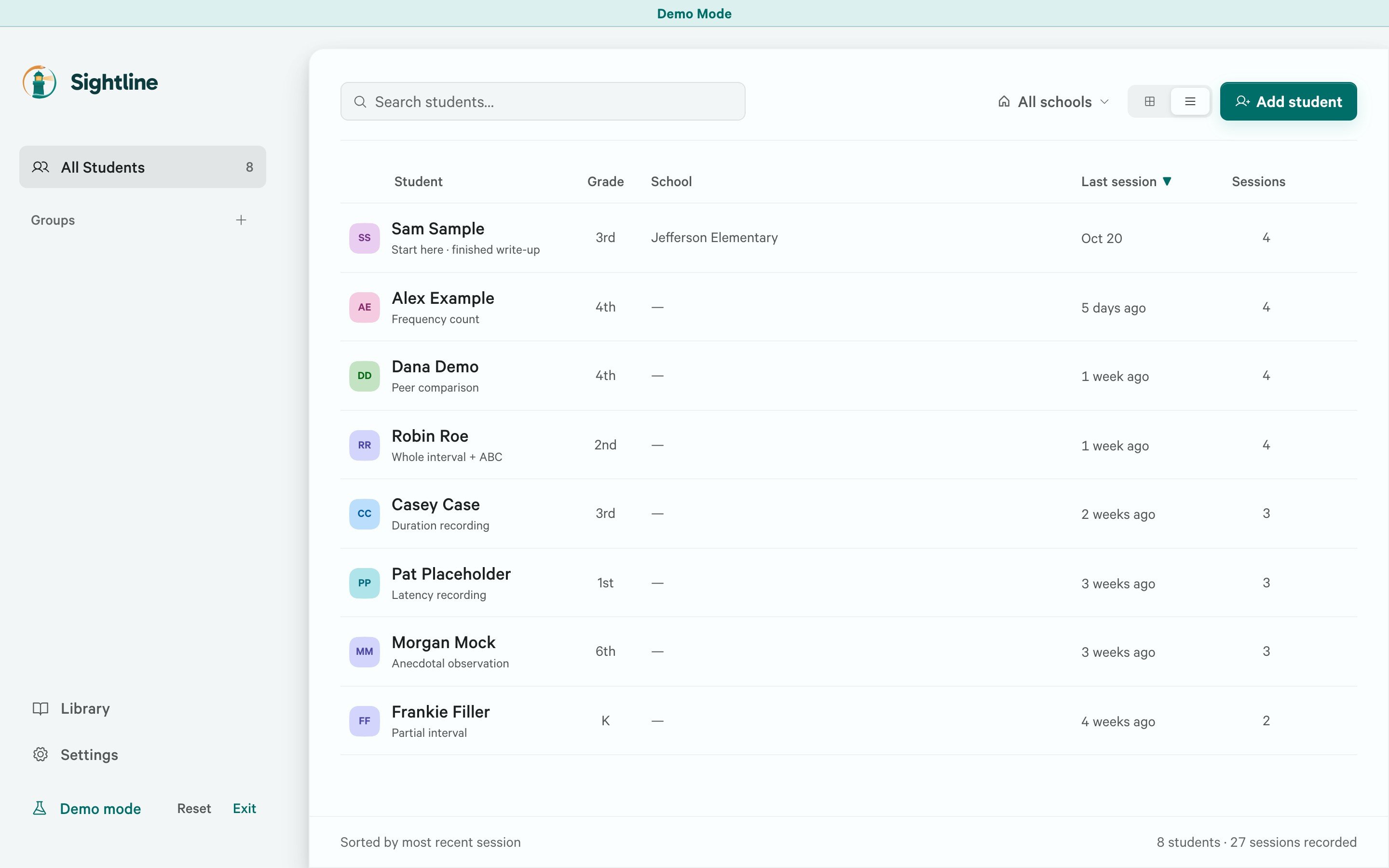
From the student list, select **Add student**. Enter the student’s name, add a school if you want, and select **Add**. Select the student in the list to open their workspace.
Use **Search students** to find someone in a longer list. You can also filter by school or choose a group in the sidebar. If a student seems to be missing, clear those filters and select **Archived** in the sidebar.
 ## Complete the Case File
Open the student and select **Case File**. Under **Student**, select **Edit** to change the name, school, teacher, grade, or pronouns. Select **Save** below the fields when you are finished. **Cancel** discards your changes to those fields.
Use **Background** for a case note. Open the section, write or edit the note, then select its **Save** button.
Student details and Background save separately. Save each section you changed before leaving Case File.
For the student’s behavior definitions and ABC tags, open **Library**. See [Use the Library](/library) for those controls.
## Record intervention phases
Use **Intervention phases** in Case File to record when a phase began and what changed. These dates help you read observations alongside the intervention history.
1. Select **Add phase**.
2. Enter the **Start** date and a **Phase** name, such as Baseline or Break card.
3. Add an **End** date if the phase has ended. Use **Context** for details such as the setting or who delivers the intervention, and **Notes** for the plan or changes.
4. Select **Save**.
Select an existing phase to edit it. **Remove phase** removes its dates and notes from the plan after confirmation.
## Work with the student’s observations
Select **Sessions** to open a saved observation or start another one. Opening a session shows its recorded data and results. From there, **Write-up** opens the [single-observation Write-Up Workspace](/writeup-workspace).
For work across observations, use [Compare](/comparison). For an ABC-based account of behavior and possible function, open the [FBA Workspace](/fba-workspace).
## Organize students into groups
Groups let you narrow the roster to a set of students, such as a school or caseload. From the roster, right-click a student and choose a group under **Add to group**. Choose **New Group…** if you need to create one.
Each student belongs to one group at a time. Choosing another group moves the student to it. **Remove from group** returns the student to the ungrouped roster without removing their records. Select **All Students** to see students across groups.
## Archive or delete a student
### Archive a student
To remove a student from the active roster while keeping their records, open the student’s **More actions** menu and select **Archive Student**. Read the confirmation and select **Archive**. If there is unfinished work on the phone or an observation waiting for review, Sightline shows an additional warning before archiving.
### Restore an archived student
From the student list, select **Archived** in the sidebar. Open the student's three-dot options menu and select **Restore**.
When you restore a student, sessions archived with them return to the active list, while sessions you archived separately stay archived.
### Delete a student
**Delete Student** permanently removes the student record and observations. The confirmation names the student and requires **Delete permanently**. Save a [backup](/backup-and-restore) or [raw export](/raw-data) first if you need to retain a copy.
Text saved in AI refinement history can remain in the current database after deletion, so this action does not erase every stored passage about the student. It also does not remove copies already held in local backups or exported files. Those copies need to be managed separately.
This documentation is built and hosted on [Mintlify](https://mintlify.com), a developer documentation platform.
## Complete the Case File
Open the student and select **Case File**. Under **Student**, select **Edit** to change the name, school, teacher, grade, or pronouns. Select **Save** below the fields when you are finished. **Cancel** discards your changes to those fields.
Use **Background** for a case note. Open the section, write or edit the note, then select its **Save** button.
Student details and Background save separately. Save each section you changed before leaving Case File.
For the student’s behavior definitions and ABC tags, open **Library**. See [Use the Library](/library) for those controls.
## Record intervention phases
Use **Intervention phases** in Case File to record when a phase began and what changed. These dates help you read observations alongside the intervention history.
1. Select **Add phase**.
2. Enter the **Start** date and a **Phase** name, such as Baseline or Break card.
3. Add an **End** date if the phase has ended. Use **Context** for details such as the setting or who delivers the intervention, and **Notes** for the plan or changes.
4. Select **Save**.
Select an existing phase to edit it. **Remove phase** removes its dates and notes from the plan after confirmation.
## Work with the student’s observations
Select **Sessions** to open a saved observation or start another one. Opening a session shows its recorded data and results. From there, **Write-up** opens the [single-observation Write-Up Workspace](/writeup-workspace).
For work across observations, use [Compare](/comparison). For an ABC-based account of behavior and possible function, open the [FBA Workspace](/fba-workspace).
## Organize students into groups
Groups let you narrow the roster to a set of students, such as a school or caseload. From the roster, right-click a student and choose a group under **Add to group**. Choose **New Group…** if you need to create one.
Each student belongs to one group at a time. Choosing another group moves the student to it. **Remove from group** returns the student to the ungrouped roster without removing their records. Select **All Students** to see students across groups.
## Archive or delete a student
### Archive a student
To remove a student from the active roster while keeping their records, open the student’s **More actions** menu and select **Archive Student**. Read the confirmation and select **Archive**. If there is unfinished work on the phone or an observation waiting for review, Sightline shows an additional warning before archiving.
### Restore an archived student
From the student list, select **Archived** in the sidebar. Open the student's three-dot options menu and select **Restore**.
When you restore a student, sessions archived with them return to the active list, while sessions you archived separately stay archived.
### Delete a student
**Delete Student** permanently removes the student record and observations. The confirmation names the student and requires **Delete permanently**. Save a [backup](/backup-and-restore) or [raw export](/raw-data) first if you need to retain a copy.
Text saved in AI refinement history can remain in the current database after deletion, so this action does not erase every stored passage about the student. It also does not remove copies already held in local backups or exported files. Those copies need to be managed separately.
This documentation is built and hosted on [Mintlify](https://mintlify.com), a developer documentation platform.