

Adjust the appearance
In General, choose Light, Dark, or System under Theme. System follows your computer’s light or dark appearance. Turn on Increase contrast if you want stronger outlines and cell borders. General also contains Demo mode, which lets you explore Sightline with sample students and observations. Your real data is hidden while demo mode is on. Turn it off to return to your own records. Reset demo data restores the original sample students and sessions after you have experimented with them.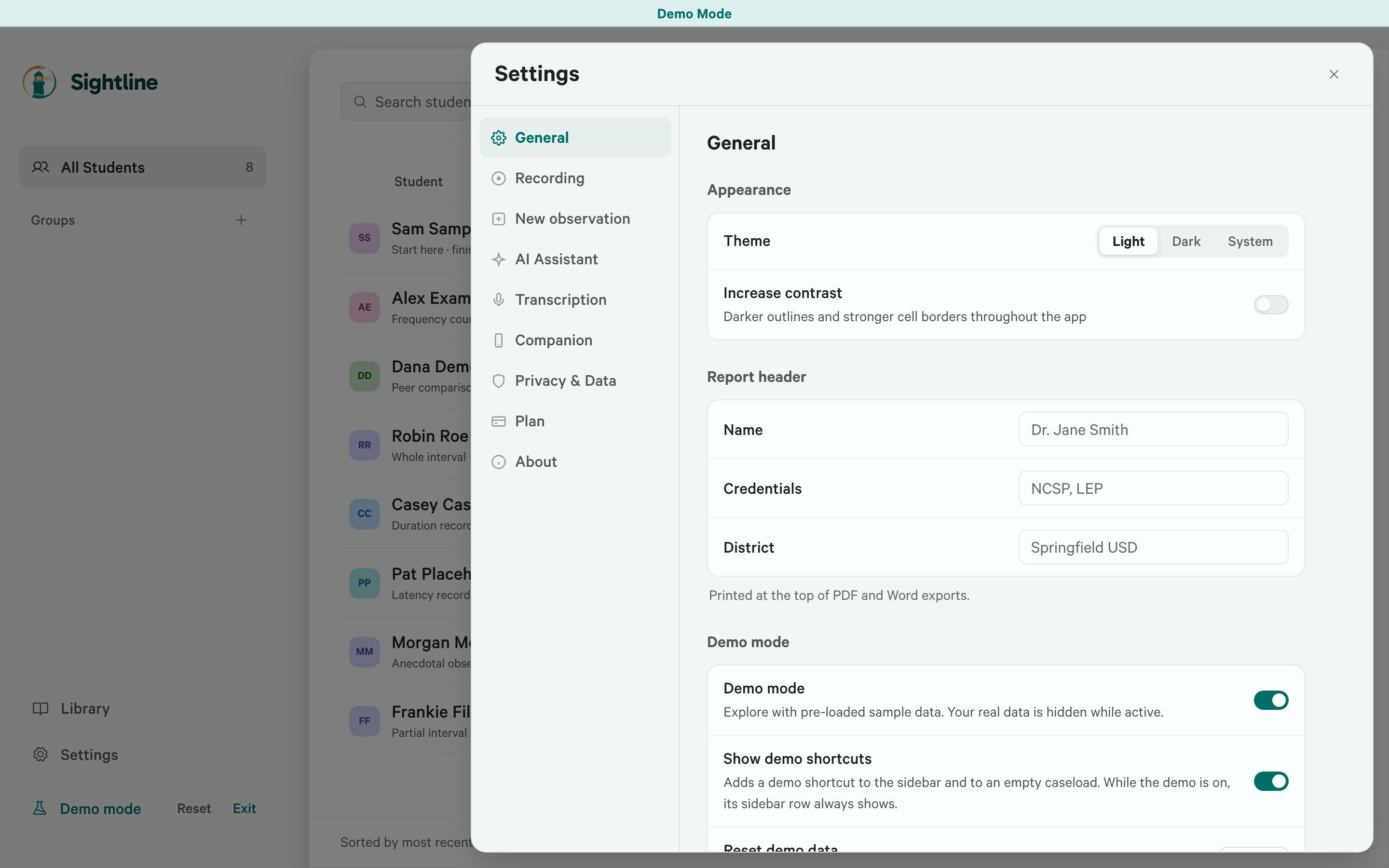
Choose a settings section on the left. General contains appearance, Demo mode, and the report header. Shown with sample records.
Add your report header
In General, under Report header, enter your Name, Credentials, and District. Sightline uses your name and credentials in document exports, including the signature line on write-ups. Review these details before exporting a document for the first time.Choose recording cues and behavior
Open Recording to adjust the cues you use during an observation.- Sound sets the interval cue to Beep or Chime. Off silences every recording sound, including interval cues, the end-of-session beep, and the start, stop, and trial sounds in Duration and Latency. Volume appears when Sound is not Off.
- Screen pulse pulses the screen edge when an interval changes. This can help you notice transitions without sound.
- Count interval time up changes the interval timer from counting down to counting up within the current interval.
Set defaults for new observations
Turn off Demo mode before setting defaults for your own observations. Then open New observation. These settings let you reuse common choices while still adjusting each observation before you start.- Choose a Default method to have it preselected when you open a new observation.
- Under Defaults for, choose the method whose settings you want to change. This lets you edit another method’s defaults without changing your Default method.
- Adjust the options shown for that method, such as session length, interval size, or peer comparison.
Manage privacy and records
In Privacy & Data, use Anonymous analytics and Crash reports to control optional usage analytics and automatic crash reporting separately. To report a problem, open About and select Send feedback. You can check Include diagnostics to attach information about the app and your computer. Review that information before sending. Send feedback is also on the Help menu. Return to Privacy & Data for backup and data-transfer controls:- Use Back up and restore your data for automatic backups, saving a separate backup, or recovering records.
- Use Export and import Sightline records for the Export records and Import records controls under Transfer records.
Find setup and maintenance options
In About, select Check for updates to look for a newer version. If one is available, Install & restart installs it and restarts Sightline. About also has Send feedback, a link to this site, and the keyboard shortcut list.