

Add and find a student
From the student list, select Add student. Enter the student’s name, add a school if you want, and select Add. Select the student in the list to open their workspace. Use Search students to find someone in a longer list. You can also filter by school or choose a group in the sidebar. If a student seems to be missing, clear those filters and select Archived in the sidebar.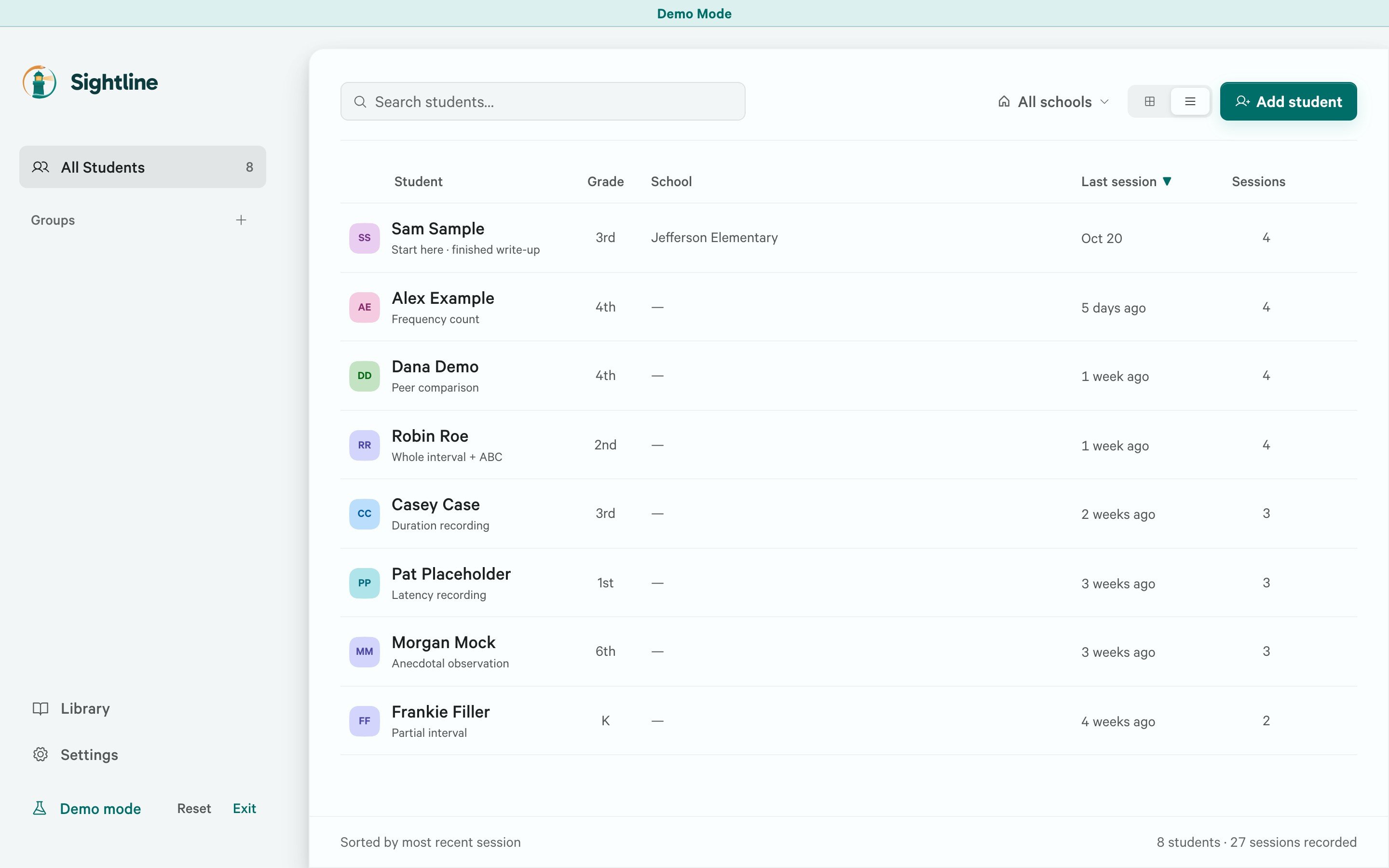
Use Search students, the school filter, or a group to narrow the roster. Select a student to open their workspace. Shown with sample records.
Complete the Case File
Open the student and select Case File. Under Student, select Edit to change the name, school, teacher, grade, or pronouns. Select Save below the fields when you are finished. Cancel discards your changes to those fields. Use Background for a case note. Open the section, write or edit the note, then select its Save button. Student details and Background save separately. Save each section you changed before leaving Case File. For the student’s behavior definitions and ABC tags, open Library. See Use the Library for those controls.Record intervention phases
Use Intervention phases in Case File to record when a phase began and what changed. These dates help you read observations alongside the intervention history.- Select Add phase.
- Enter the Start date and a Phase name, such as Baseline or Break card.
- Add an End date if the phase has ended. Use Context for details such as the setting or who delivers the intervention, and Notes for the plan or changes.
- Select Save.